
EximeeBPMS Plugin for Camunda Modeler
Without the plugin, Camunda Modeler has no fields for the ad-hoc subprocess’s
adHoc element, which you then write in the
XML. With it:
- the properties panel of an ad-hoc subprocess edits how it runs — elements activated by the engine, or an external worker such as the AI agent with its topic and task priority — its active elements, its output collection and output element, and the turn history the worker reads;
- applying the AI Agent element template
also creates the output collection
toolCallResultsand the output element the agent expects; - the Problems view reports what the engine would reject at deployment —
start or end events inside the subprocess, a completion condition beside a
worker topic, an output collection named as an engine variable,
fromAideclarations that contradict each other and more — and warns of a tool without documentation, which the model needs to choose it; - a file that contains
camunda:adHocoractiviti:adHocis converted toeximeebpms:adHocwhen it is opened, so that nothing is lost on save.
Install the plugin
- Obtain
camunda-modeler-plugin-eximeebpms-<version>.zip, released with the EximeeBPMS Modeler packages, through the channel you receive Enterprise artifacts from. - Unpack it into the
resources/pluginsfolder of Camunda Modeler’s installation directory, or of its user data directory:%APPDATA%\camunda-modeler\resources\pluginson Windows,~/Library/Application Support/camunda-modeler/resources/pluginson macOS,~/.config/camunda-modeler/resources/pluginson Linux. The foldercamunda-modeler-plugin-eximeebpmsmust containindex.js. - Restart Camunda Modeler.
Install the element templates of the AI agent and the connectors as described in Modeling and Element Templates.
Model an AI agent
- Create a BPMN diagram for Camunda 7, draw an expanded subprocess and change its type to Ad-hoc sub-process. Model its tools inside it, without incoming sequence flows, each with a documentation that tells the model what it does. In the version selector of the status bar, keep the latest Camunda 7 version, 7.24: Camunda Modeler picks its own checks by this version, and the EximeeBPMS engine ignores it. The Default Camunda 7 version in Camunda Modeler’s settings sets it for new diagrams.
- Select the subprocess, choose Template › Select and pick AI Agent. The template sets the worker topic; the plugin adds the output collection and its output element. Fill in the provider and the prompts in the template’s groups.
- Check the Implementation, Output collection and Turn history groups. An external worker decides when the subprocess completes, so the Completion group is hidden; the plugin removes a completion condition when a topic is set.
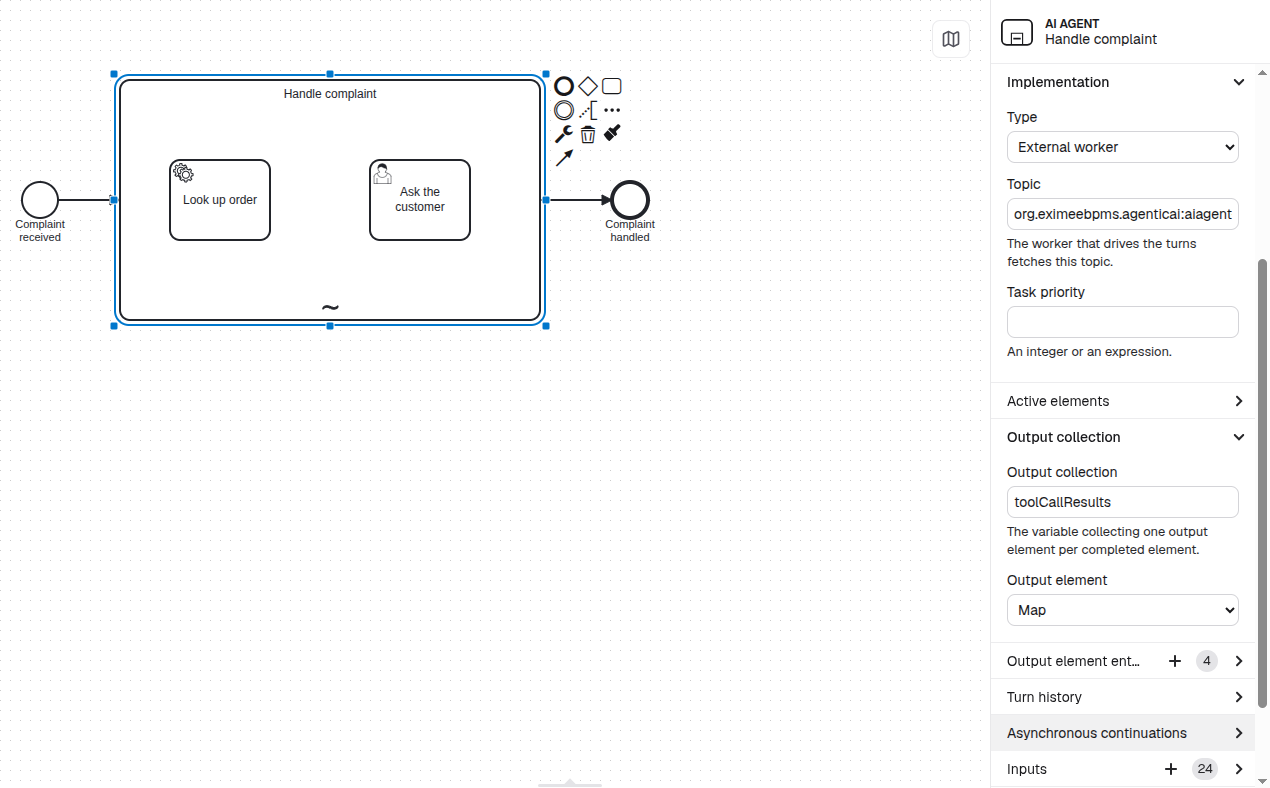
For an ad-hoc subprocess whose elements are activated by the engine or through the API, keep Type at BPMN and set the active elements, the output collection and the completion condition. The BPMN reference describes each setting.
Check the model
The Problems view lists the deployment errors the engine would report, on the element the engine would name. Correct them before you deploy.
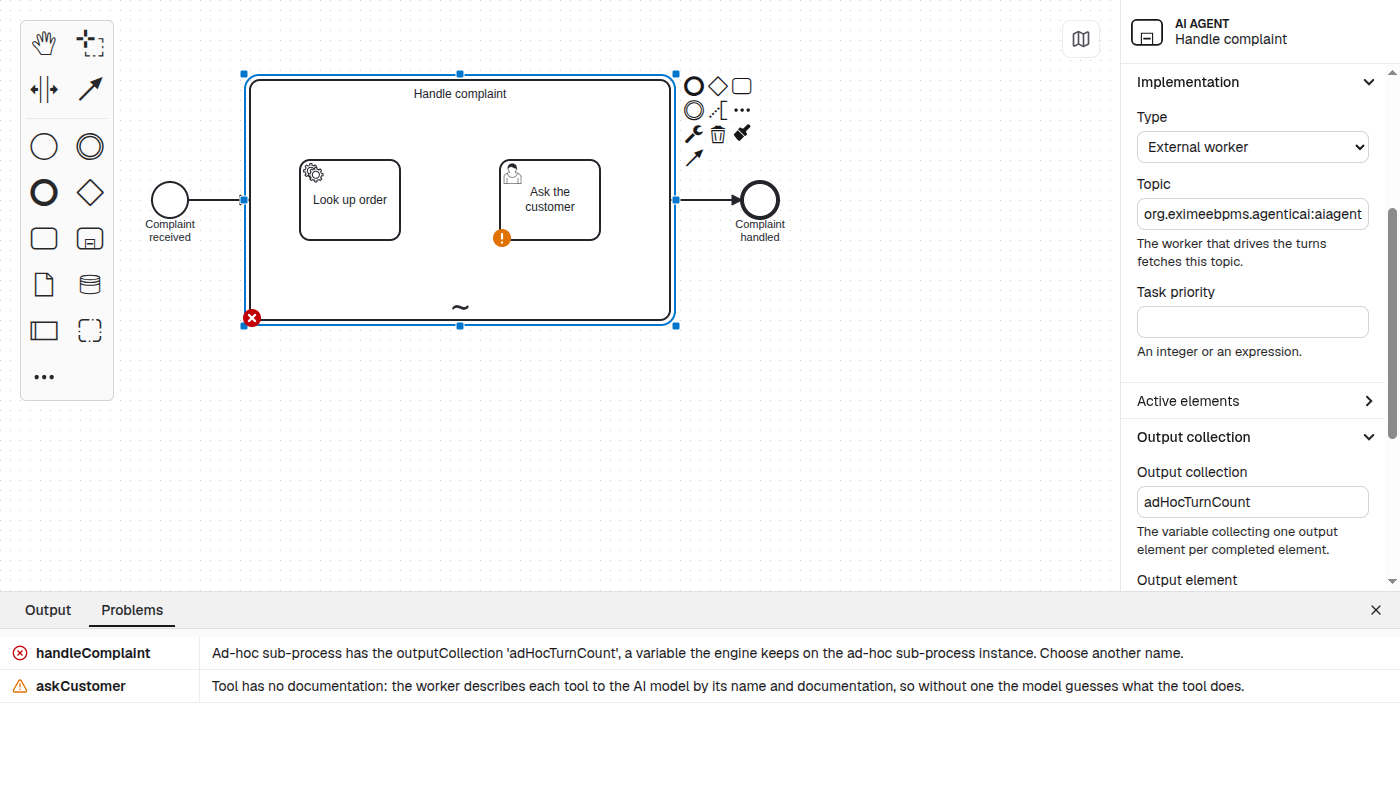
The checks are a preview; the engine’s checks at deployment remain the
reference. The script check assumes the engine’s script guard in ENFORCE mode.
Open older diagrams
A diagram written with camunda:adHoc, as the XML recipe of earlier releases
showed, is converted to eximeebpms:adHoc when it is opened, and the
subprocess’s panel says so. Camunda Modeler writes the converted form only
after a change — until then Save does nothing and Save As writes the file as
it was opened — so make an edit and save. The engine reads
both forms; eximeebpms:adHoc is the one Camunda Modeler without the plugin
keeps.
The diagrams the plugin saves open in Camunda Modeler without the plugin, which
keeps the eximeebpms: elements unchanged but cannot edit them.
Embed the same support in a web modeler
The plugin is built from bpmn-js packages that a web application embedding
bpmn-js registers the same way: @eximeebpms/bpmn-moddle,
@eximeebpms/bpmn-js-adhoc, @eximeebpms/bpmnlint-plugin-eximeebpms and the
element templates as @eximeebpms/element-templates, from the EximeeBPMS npm
repository. Ask your EximeeBPMS contact for access and for the integration guide.